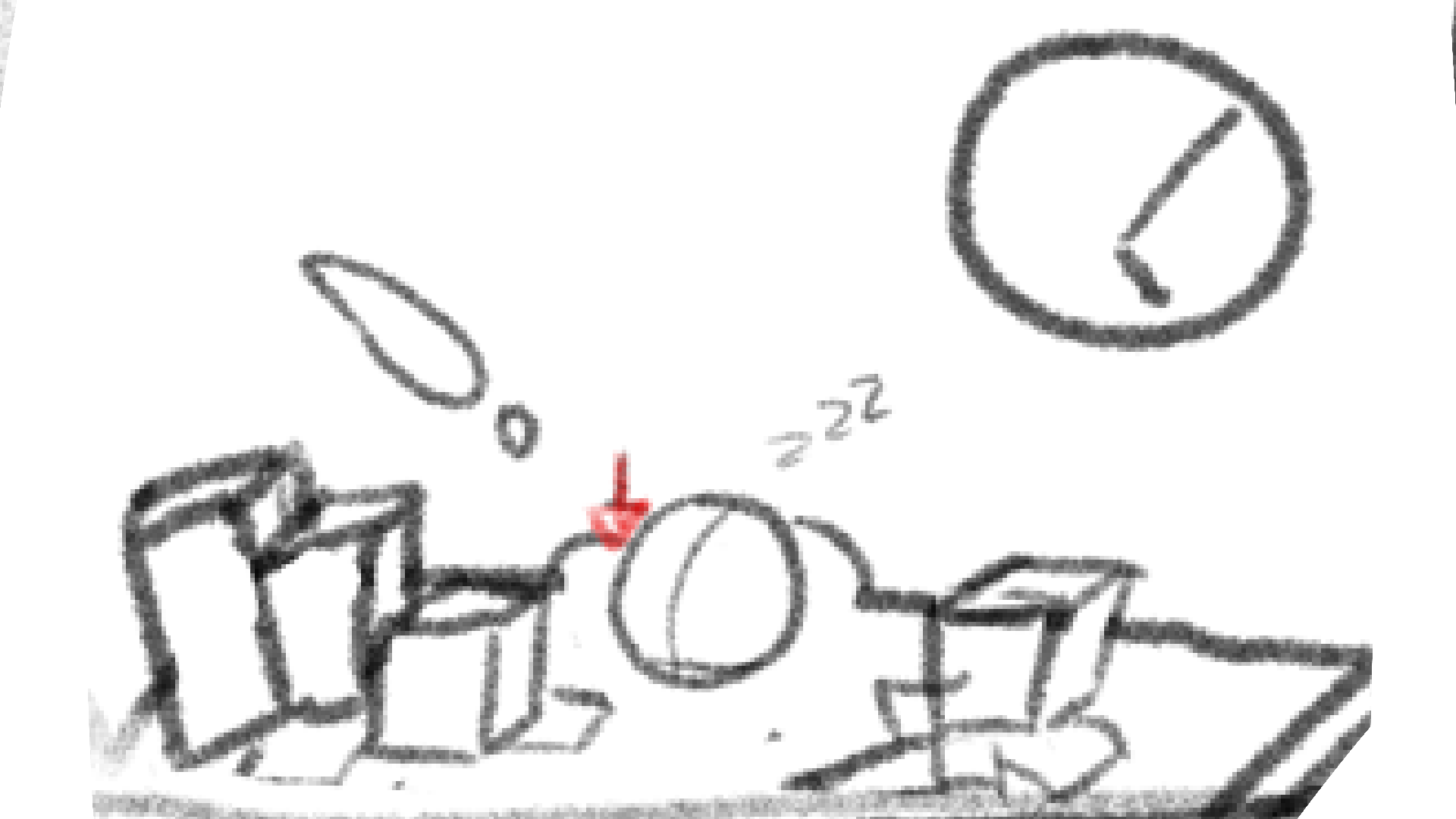
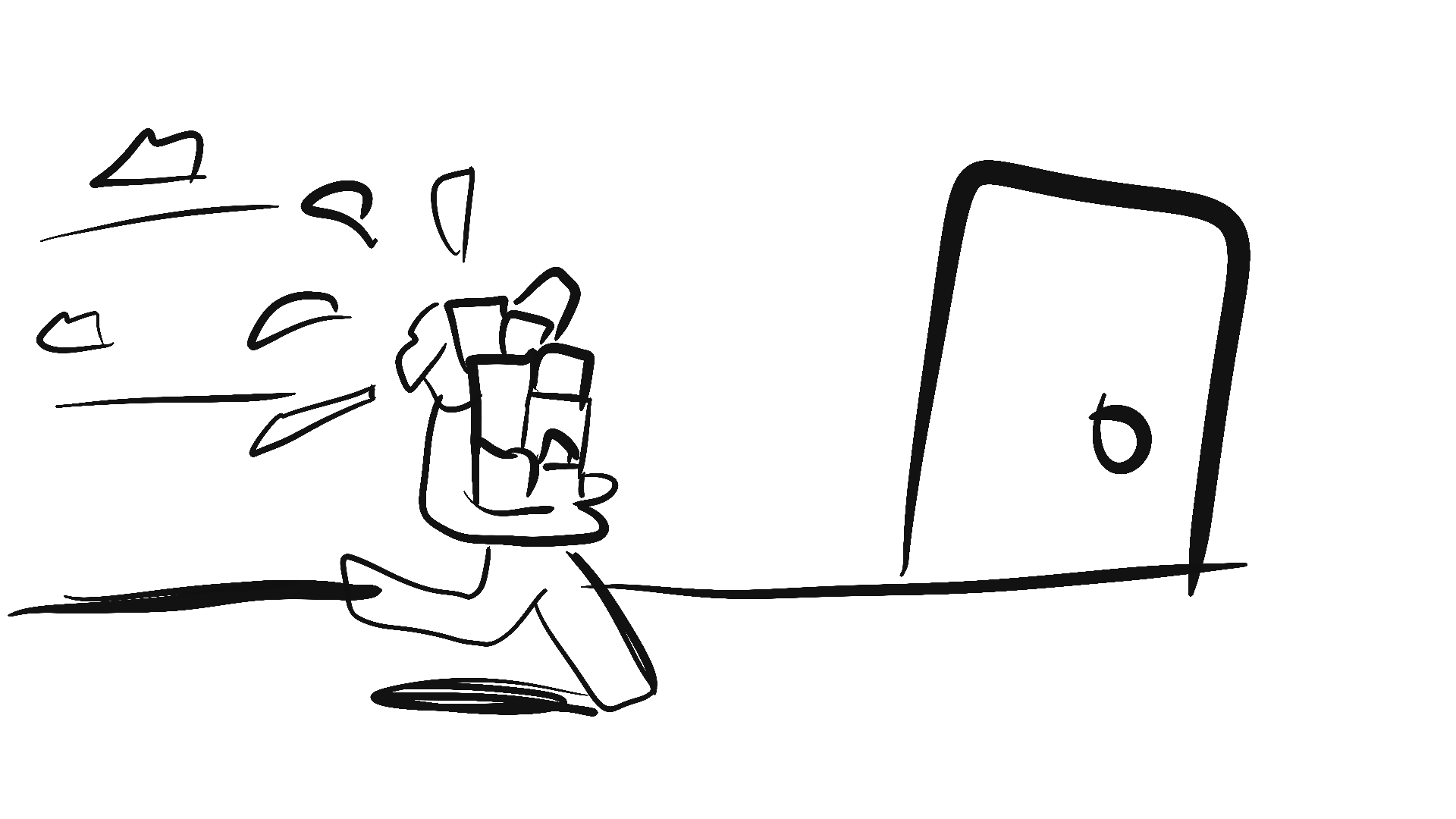

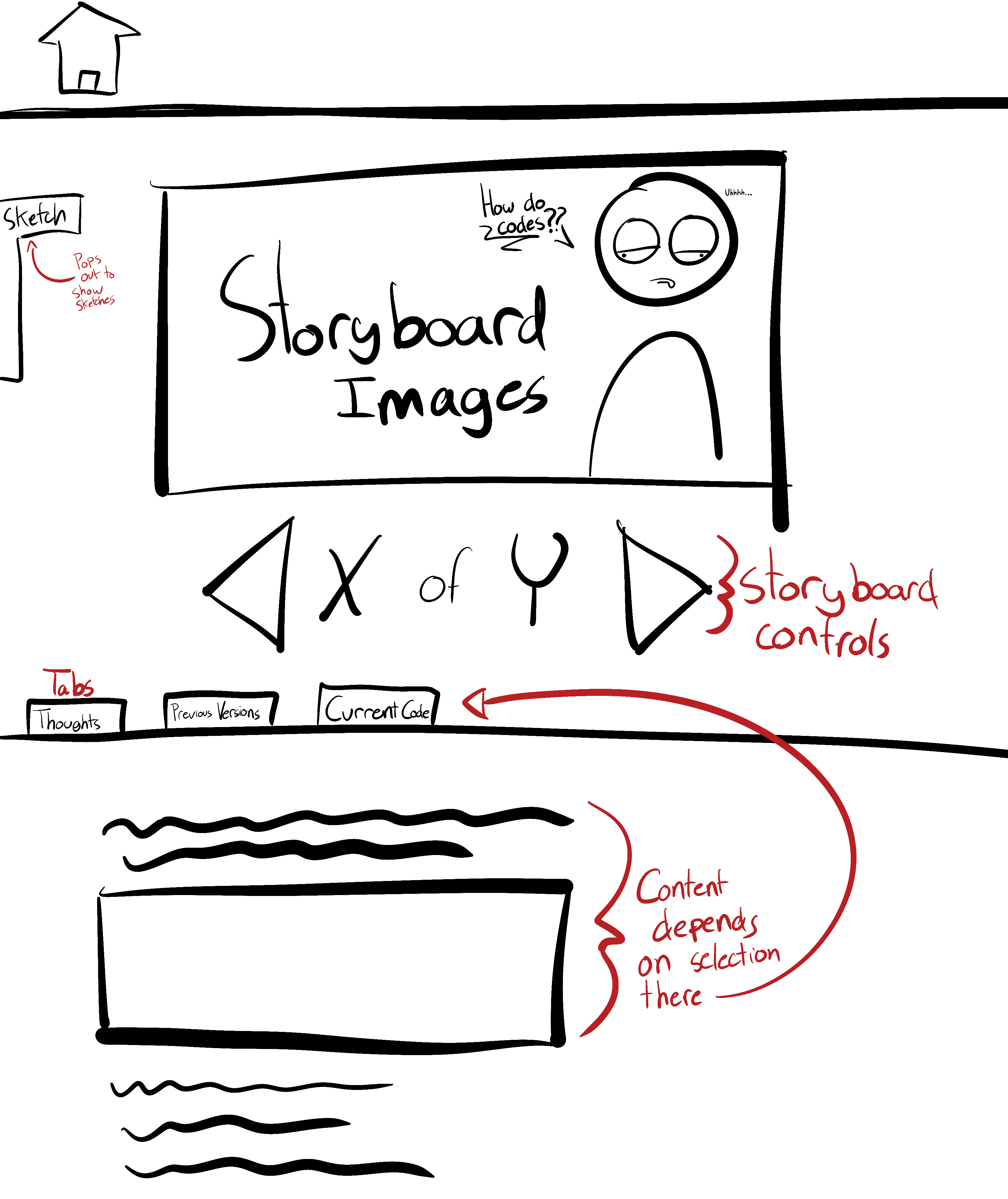
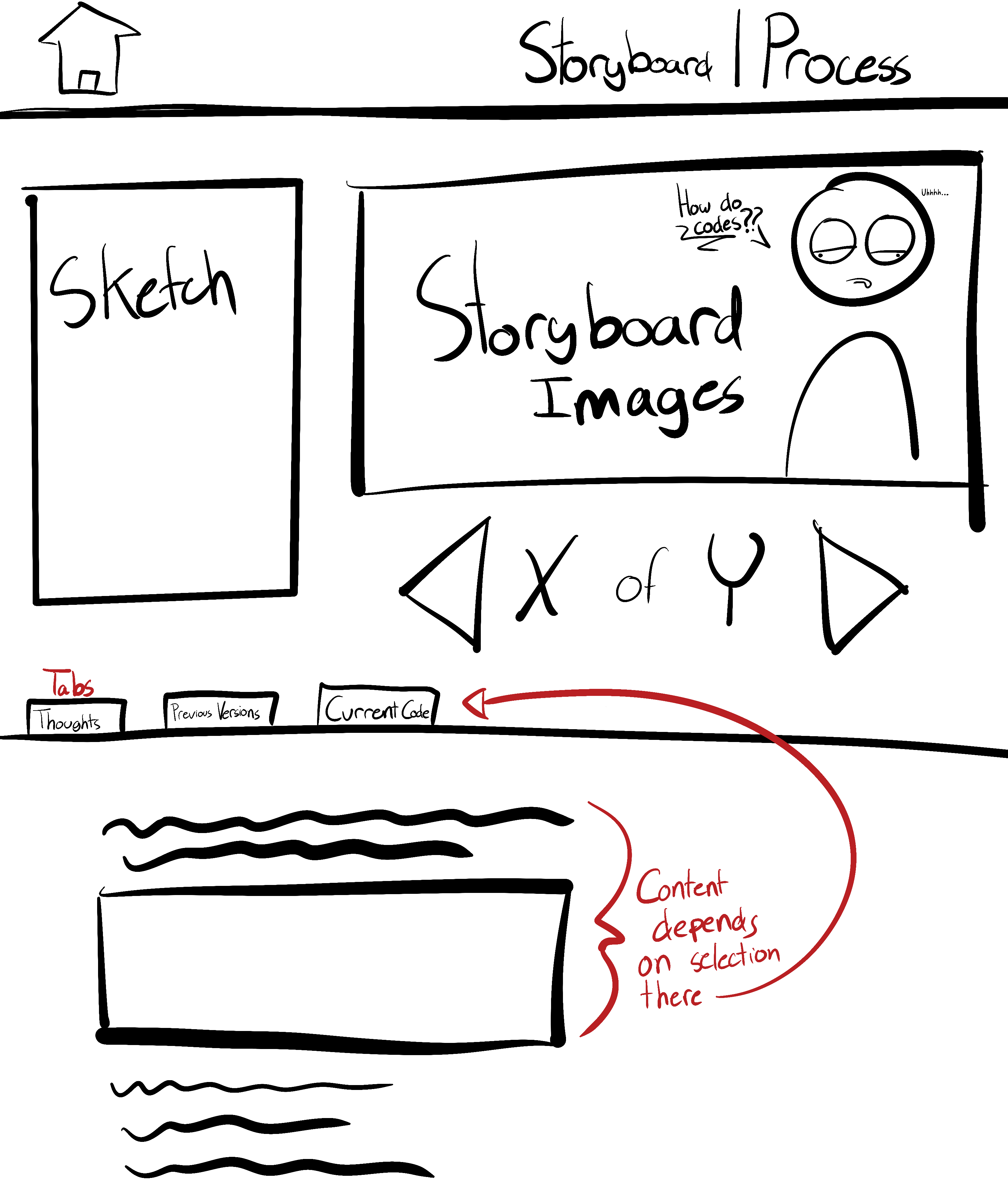
Before moving the sketches for this project to their own standalone tab, I was originally gonna have a popup window on the side similar to that of the challenge that was proposed during the web animation exercises. However, after various iterations, it refused to either work properly or be placed in the correct location. The following is the very last iteration of code before I changed my mind on where to place the sketches.
                        CSS

#sketch article{
  position: relative;
  color:rgb(62, 62, 62)
}

#sketch article section{
position: absolute;
top: 2.44em;
  width: 700px;
  left: -700px;
  padding: 0 1em 0.5em 0.5em;
  background-color: rgba(193, 193, 193, 0.95);
  transition: transform 0.5s;
}

#sketch article section nav{
  width: 110%;
  text-align: right;
  background-color: rgba(193, 193, 193, 0.95);
  padding: 0.5em;
}

.open{
  transform: translateX(690px);
}
                        JS

let popup = document.querySelectorAll('#sketch');

popup.forEach(function(element){
  element.addEventListener('click', showSketch);
});

function showSketch(element) {
  this.parentNode.classList.toggle('open');
  if(this.innerHTML == 'i'){
    this.innerHTML = 'x';
  }else{
    this.innerHTML = 'i';
  }
}
So, in addition to my multiple attempts with the popup menu for the sketches, I went through many variations of the storyboard's javascript. The code I'm showing here was based on Bruce's and was the longest (yet most organized) iteration of it. In fact, I'm still confused why it didn't work.
                        JS

let frame = document.querySelectorAll('#board figure');
let board = document.querySelector('#board');
let info = document.querySelector('#info');

//Click Events for navigation in gallery

let forward = document.querySelector('#forward');
forward.addEventListener('click', slideNext);

let next = document.querySelector('#previous');
first.addEventListener('click', slidePrevious);

//Determine what slide we're on
let slideIndex = 0;

function displaySlideInfo() {
    info.innerHTML = `board ${Math.abs(slideIndex) + 1} of ${frame.length}`;
}

//Storyboard Interactions
// move to next slide if there is another slide
function slideNext(event) {
if (slideIndex < frame.length -1 ) {
    slideIndex++;}
// if there is no next slide reset to beginning
else {
    slideIndex = 0;
}
let boardWidth = frame[slideIndex].offsetWidth;
  board.style.transform = `translate(${-slideIndex * boardWidth}px, 0)`;
  displaySlideInfo();
}
                        CSS

* {
box-sizing: border-box;
    margin: 0;
  }


nav {
    top: 0;
    padding: 0 0.5rem;
    width: 100%;
    height: 60px;
    background-color: rgba(10, 10, 10, 0);
    color: rgb(210, 210, 210);
    z-index: 999;
}

a{
  text-decoration: none;
  color: rgb(210, 210, 210);
  transition: color 0.5s;
}
a:hover{
  color: rgb(77, 146, 109);
}

#bar {
    position: fixed;
    padding: 0.67rem 3rem;
    background-color: rgb(0, 0, 0);
    font-size: 1.5rem;
    display: grid;
    grid-template-columns: 6fr repeat(3, min-content);
    text-align: left;
    gap: 1.44rem;
}

body {
    background-color: rgb(27, 27, 27);
}

ion-icon {
  color: rgb(210, 210, 210);
  transition: color 0.5s;
}

ion-icon:hover {
  color: rgb(77, 146, 109);
}

/* sketch Box
Had some difficulty with it's placement (among other things and found it easier to add it among the tabs section)

#sketch article{
  position: relative;
  color:rgb(62, 62, 62)
}

#sketch article section{
  position: absolute;
  top: 2.44em;
  width: 700px;
  left: -700px;
  padding: 0 1em 0.5em 0.5em;
  background-color: rgba(193, 193, 193, 0.95);
  transition: transform 0.5s;
}

#sketch article section nav{
  width: 110%;
  text-align: right;
  background-color: rgba(193, 193, 193, 0.95);
  padding: 0.5em;
}

.open{
  transform: translateX(690px);
} */

/*----- Tabs ------*/
/* Taken from https://www.w3schools.com/howto/howto_js_tabs.asp */
/* Style the tab */
.tab {
  margin-top: 1rem;
  overflow: hidden;
  color: rgb(210, 210, 210);
  border-bottom: 10px solid rgb(73, 73, 73);
}

/* Style the Buttons */
.tab button {
  background-color: inherit;
  float: left;
  border: none;
  outline: none;
  cursor: pointer;
  padding: 14px 16px;
  transition: 0.3s;
  font-size: 11px;
  background-color: rgb(10, 10, 10);
  margin-left: 0.44rem;
  color: rgb(210, 210, 210);
}

/* When you hover over the Button */
.tab button:hover {
  background-color: rgb(45, 45, 45);
  color: rgb(210, 210, 210);
}

/* When the Button is Active */
.tab button.active {
  background-color: rgb(73, 73, 73);
  color: rgb(210, 210, 210);
}

.tabcontent {
  animation: fadeEffect 1s;
  display: none;
  padding: 6px 12px;
  border-top: none;
  color: rgb(210, 210, 210);
  background-color: rgb(73, 73, 73);
  left: 20px;
}

#sketches img {
  border: solid;
  overflow:hidden;
  max-width: 7rem;
  margin-left: 1rem;
  margin-bottom: 20px;
}
#prevCode p {
  max-width: 80%;
}
pre {
  grid-template-columns: 1fr;
  margin-top: 10px;
  top: 0px;
  display: inline-block;
  background-color: rgb(27, 27, 27);
  padding: 1rem;
  height: 200px;
  border-radius: 5px;
  overflow-y: scroll;
}
pre h3 {
  background-color: rgb(210, 210, 210);
  color: rgb(27, 27, 27);
  text-align: center;
}

@keyframes fadeEffect {
  from {opacity: 0;}
  to {opacity: 1;}
}

@media screen and (min-width: 60rem) {
#bar {
  font-size: 2rem;
}
.tab button {
  font-size: 18px;
}
#sketches img {
  max-width: 27.5rem;
  margin-left: 2rem;
}
pre {
  width: 40%;
}
#nowCode pre {
  height: 400px;
  width: 47.5%;
}
}

/* Storyboard Main Elements */
#storyboard{
    max-width: 750px;
    margin: 0 auto;
    overflow-x: hidden;
    overflow-y: hidden;
    white-space: nowrap;
    margin-top: 5rem;
}

#board{
    display: flex;
    transition: transform 500ms;
    white-space: nowrap;
}

#board figure{
   object-fit: cover;
   object-position: center;
   display: inline-block;
   width: 50vw;
}

#board figure img{
    width: 50vw;
    aspect-ratio: 16/9;
    animation-fill-mode: forwards;
    animation-fill-mode: forwards;
}

/* Animation Effects */

/* Style Storyboard Elements */

#controller {
    max-width: auto;
    margin: 0 auto;
    display: grid;
    grid-template-columns: 1fr 2fr 1fr;
    font-size: 3rem;
    text-align: center;
    justify-self: center;
}
                        JS

let frame = document.querySelectorAll('#board figure');
let board = document.querySelector('#board');

let slideIndex = 0;

//Navigation Click Events
//Forward Button > Activates Showslide Function
let forward = document.querySelector("#forward");
forward.addEventListener("click", slideNext);
//Back Button
let previous = document.querySelector("#previous");
previous.addEventListener("click", slidePrevious);

//
function slideNext(event) {
    console.log(event);
    if(slideIndex >= frame.length -1){
        slideIndex = 0;
    }else{
       slideIndex++;
    }
   board.style.transform = `translateX(-${frame[slideIndex].querySelector('img').width * slideIndex}px)`;
}

function slidePrevious(event) {
    console.log(event);
    if (slideIndex > 0) {
        slideIndex--;
    } else {
        slideIndex = frame.length -1;
    }
    board.style.transform = `translateX(-${frame[slideIndex].querySelector('img').width * slideIndex}px)`;
}

//----- Tabs ------//
// Taken from https://www.w3schools.com/howto/howto_js_tabs.asp //
function tabMenu(evt, cityName) {
  var i, tabcontent, metatabcontent, tablinks;
  tabcontent = document.getElementsByClassName("tabcontent");
  for (i = 0; i < tabcontent.length; i++) {
    tabcontent[i].style.display = "none";
  }
  tablinks = document.getElementsByClassName("tablinks");
  for (i = 0; i < tablinks.length; i++) {
    tablinks[i].className = tablinks[i].className.replace(" active", "");
  }
  document.getElementById(cityName).style.display = "block";
  evt.currentTarget.className += " active";
}

// Once page opens immediately open default tab
document.getElementById("defaultOpen").click();
At first, I was pretty confused on where I'd bring this. I generally dislike going for the obvious solution but I racked my head too hard with various ideas. Originally, I was thinking of trying to make it so that the storyboard would be a half circle, wherein it would rotate to show the next screen. However, I thought that that would be too complicated for a coding rookie like me. After that, I had the thought of various other ideas, all of which ended with similar thoughts. I even considered a carousel gallery, of which being a small variation of the main solution. However, as can be seen at the top of the page, I ended up going for a simple and nothing special gallery.
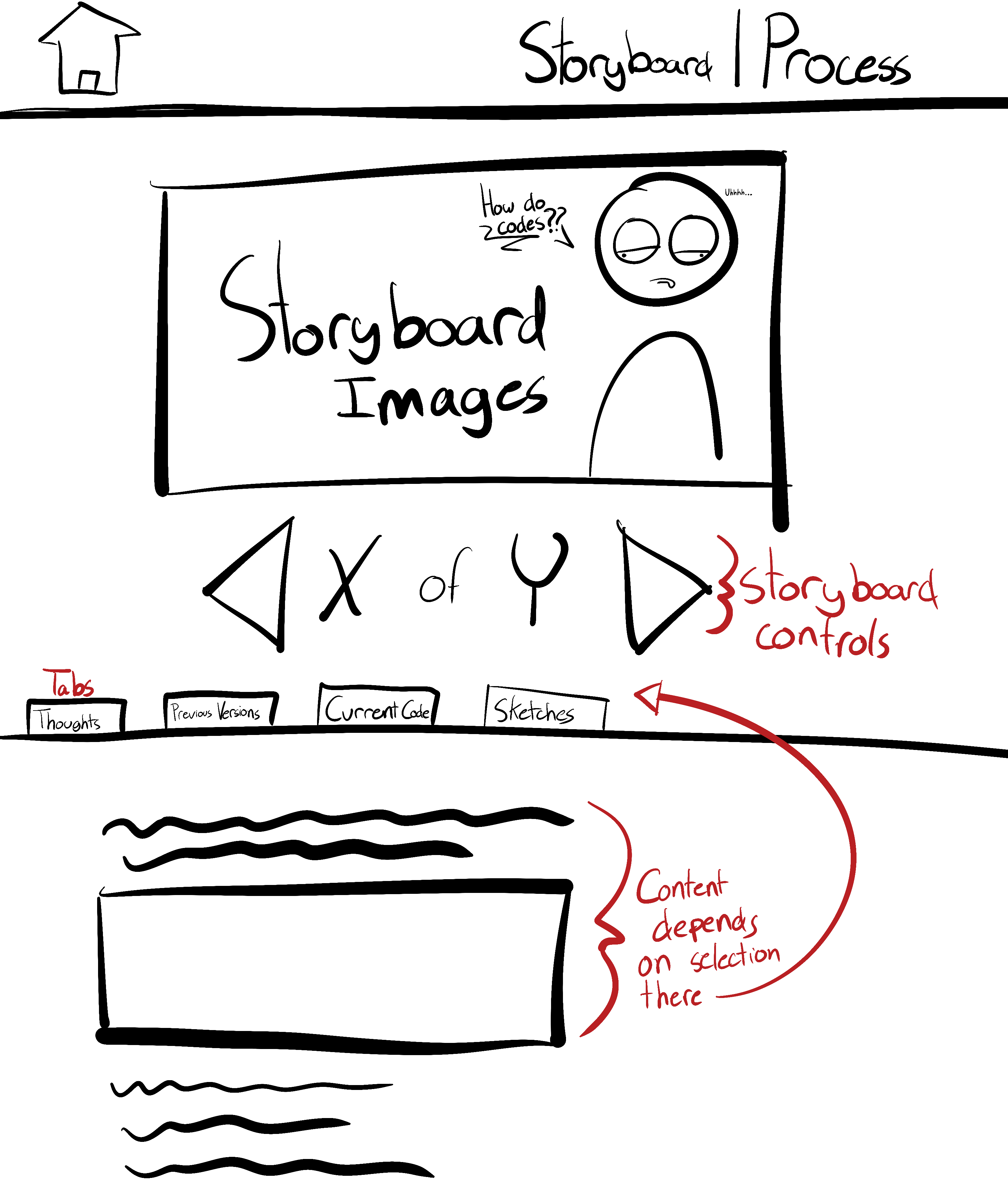
Coding the js for the storyboard was the hardest part. I went through various iterations of it, some of which still confuse me why they wouldn't work. Sometimes the frames would drift off far from the space I would designate to the storyboard when you would try to get to the next frame, other times the icons would simply not work or get obstructed by the frame. One failure where nothing even happened for some reason can be found in the "Failed Code" tab. It was only about halfway through when I remembered that I should probably keep the failed code so that I may present it as part of the process like I had jotted down in my sketches for the site.
The CSS was the easy part, The only major problems here would be that the font I would use from Google Fonts had trouble updating at times. Otherwise, it was the easiest part only second to the html. Not much to say here.